
All guide pages
Prototypes
Log prototypes in batches with automatic serial numbers, find them with filters and search, and update many at once.
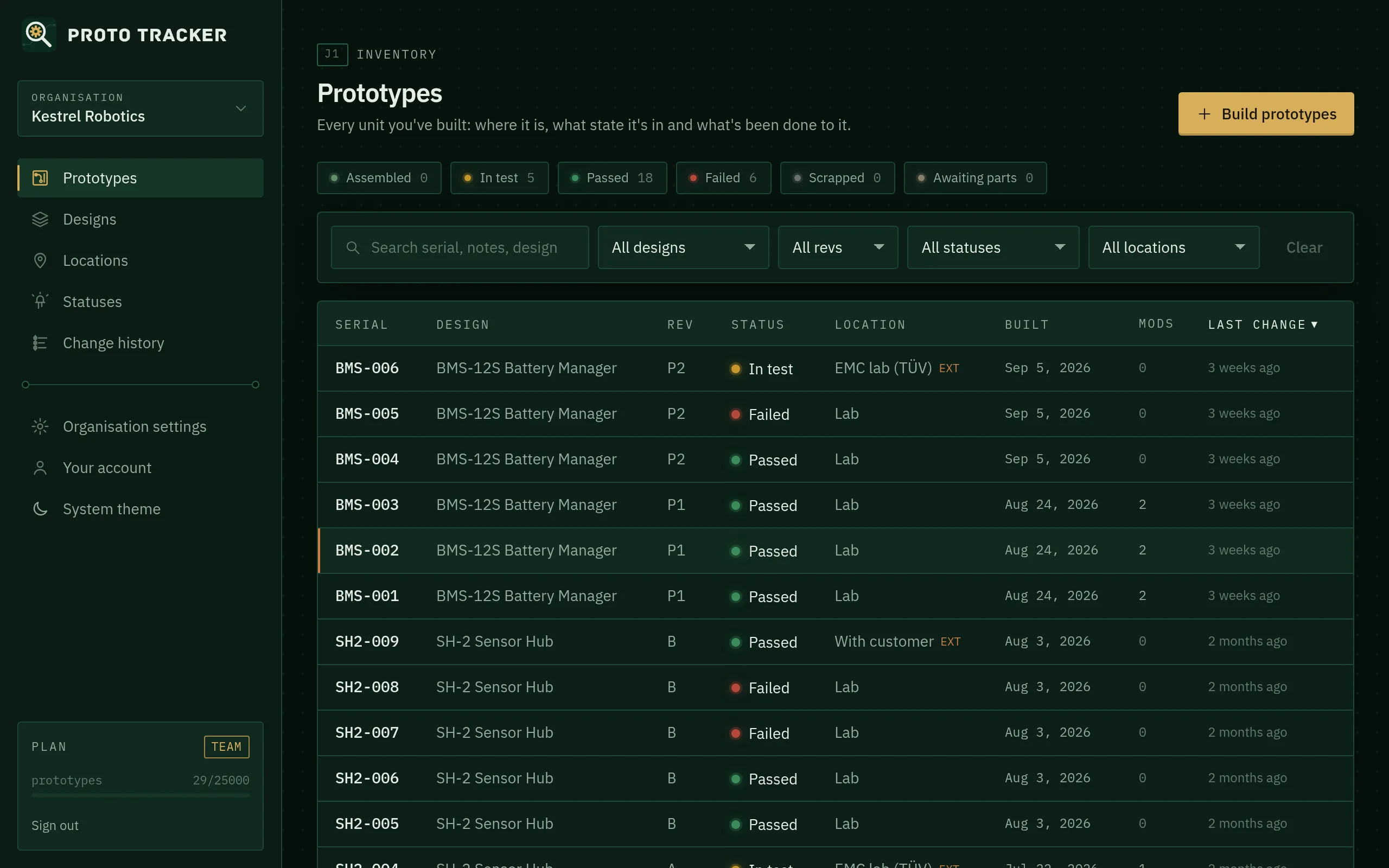
The Prototypes page lists every unit in your organisation. It’s where most day-to-day work starts.
Building prototypes
Click Build prototypes and fill in:
- Design and Revision: what was built.
- First serial: for a batch, it must end in a number.
MC4-009with a quantity of 3 createsMC4-009,MC4-010andMC4-011. Zero padding is kept. - Quantity: up to 25 at a time.
- Manufactured: the build date.
- Location, Status and Notes (all optional).
The dialog previews the serials before you create them. Serials must be unique within a design, and Proto Tracker won’t create a batch that clashes with an existing serial.
Tip: read our guide on serial numbering schemes.
Moving from a spreadsheet? Import it instead of typing everything in.
Who has it
Each prototype can have a holder: the member who physically has it right now. Set it on the prototype page (or click I have it), or for many units at once with the bulk bar. The list shows each unit’s holder, and the history records every hand-over. For units that are somewhere rather than with someone (a shelf, a test house, a customer), use the location.
Finding prototypes
- Status chips at the top show how many units are in each status. Click one to filter.
- Search matches serials, notes, design names, holders and custom field values.
- Filters narrow by design, revision, status, location and holder, including With me (on a phone, tap Filters). On the Business plan, choice and yes/no custom fields can be filtered too.
- Click a column heading to sort.
Filters are stored in the page address, so you can bookmark a view or send it to a colleague.
Updating several at once
Tick the boxes next to the prototypes you want (or the box in the header to select everything shown), then choose a new status, location and/or holder in the bar that appears and click Apply. Each prototype gets its own entry in the change history.
This is handy when a whole batch goes to a test house, or comes back from one.
Editing and deleting
Open a prototype and click Edit to change its serial, revision, build date or notes. Delete removes it from lists, but its change history is kept, so you can still see what happened to it.
You can’t move a prototype to a different revision while it has mods from its current revision applied. Remove those first (see Mods).
Something unclear or out of date? Email support@proto-tracker.com.