
All guide pages
Using Proto Tracker on your phone
Use Proto Tracker at the bench, install it on iPhone, Android or desktop, and scan QR labels to jump straight to a board.
Proto Tracker works in any modern mobile browser and is designed for one-handed use at the bench.
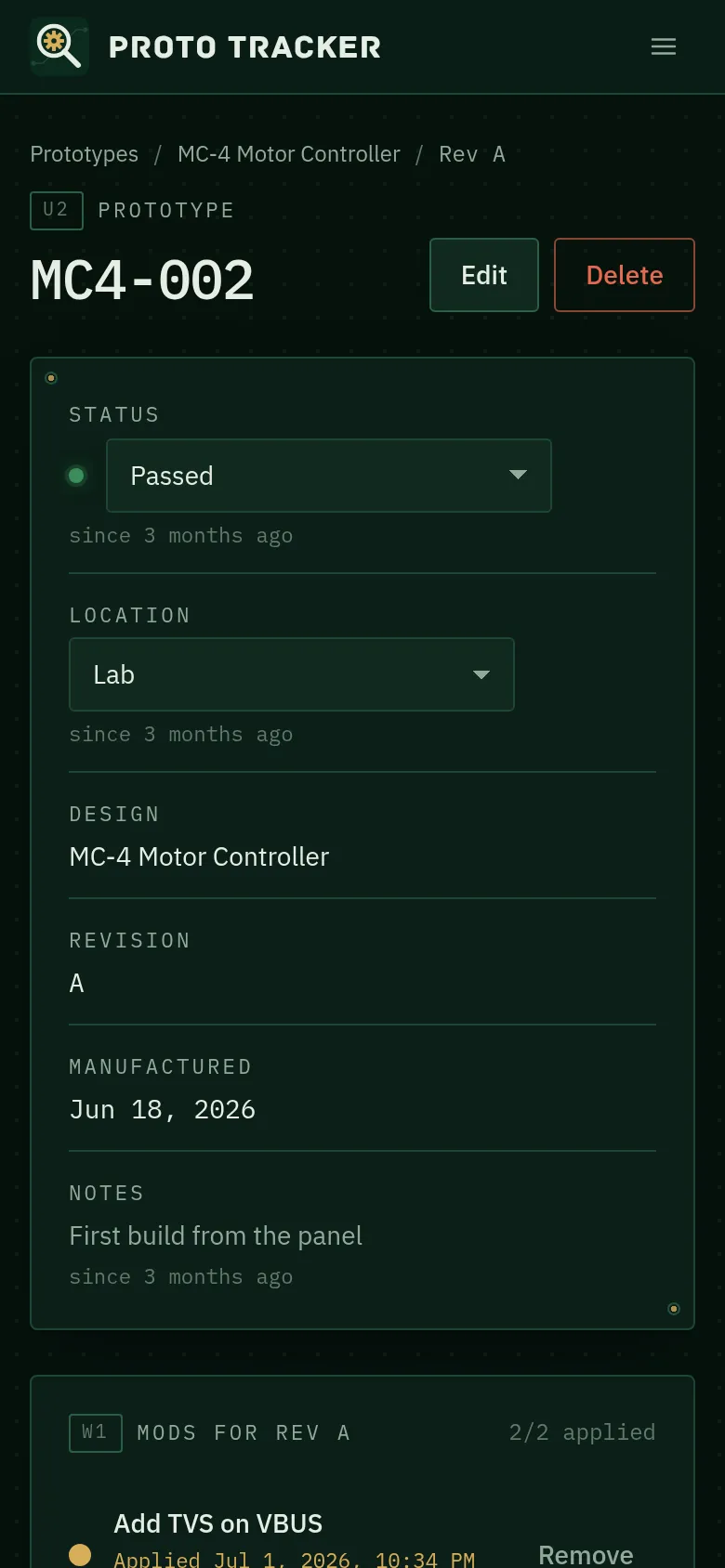
On a phone
- The bar at the bottom of the screen gets you to Prototypes, Designs and History. More opens everything else, including settings, the user guide and the tour.
- Prototypes appear as cards. Tap Filters to narrow the list, and tick cards to update several at once.
- On a prototype, change status and location with the drop-downs and add log entries as you test.
Scan a label
Point your phone’s camera at a Proto Tracker QR label and tap the link. The prototype’s page opens, ready to update. If you’re not signed in you’ll be asked to sign in first.
Install the app
Installing puts Proto Tracker on your home screen and opens it full-screen, like any other app.
iPhone and iPad (Safari)
- Open app.proto-tracker.com and sign in.
- Tap the Share button, then Add to Home Screen, then Add.
Android (Chrome)
- Open the app and sign in.
- Tap More → Install app, or use Chrome’s menu → Install app.
Desktop (Chrome or Edge)
Click Install app in the sidebar, or the install icon in the address bar.
The installed app always loads your latest data from our servers. If you lose signal it will still open, but changes can’t be saved until you’re back online. You’ll see a banner when that’s the case.
Something unclear or out of date? Email support@proto-tracker.com.